Showing posts with label Windwos 10. Show all posts

Wednesday, 6 September 2017

How To Increase / Speed Up File Transfer Speed In Windows

Image result for How To Increase / Speed Up File Transfer Speed In Windows
Features Of this Software:
Copy file and folder as usual and high efficiency and more powerful.
Good for your backup file routine.
Save much time when you backup files to another hard drive or USB drive or computer

Manage your copy file task easily.

Whats New:
Fixed command line bug.

Fixed 'Same File' condition bug.
Download ExtremeCopy Pro 2.3.4 With Key From Bellow:

Note: We compare ExtremeCopy Pro with other software like - TeraCopy Pro, FastCopy, Windows 8 Explorer and found ExtremeCopy Pro is the best. We test with a 1.78 GB file.

Friday, 25 August 2017

How to Enable the Dark Theme in Windows 10

A lot of people prefer light text on a dark background, particularly when navigating through menus on their computers. Some visually-impaired users also find a "dark" or high-contrast theme much easier to read.
By default, Windows 10's widgets, menus, email client and Edge browser all have black or blue text on a white or gray background. However, by tweaking a few settings, you can give the entire operating system a dark theme.

Edit Themes in the Registry

1. Open the registry editor by hitting Windows + R and typing "regedit" in the run field.
How to Give Windows 10’s Menus a Dark Theme
2. Navigate to HKEY_LOCAL_MACHINE\SOFTWARE\Microsoft\Windows\CurrentVersion\Themes by opening the tree in the left side of the window.
3. Create a new key by right clicking in the window pane and selecting New -> Key
New Key
4. Name the key "Personalize" and open it.
personalize
5. Create a new DWORD (32-bit) value by right clicking in the right pane and selecting New > DWORD (32-bit).
How to Give Windows 10’s Menus a Dark Theme
6. Name the DWORD "AppsUseLightTheme".
1449860707 614330
7. Set the DWORD's value to 0. To open the DWORD, simply double click on it.
How to Give Windows 10’s Menus a Dark Theme
8. Navigate to HKEY_CURRENT_USER\SOFTWARE\Microsoft\Windows\CurrentVersion\Themes\Personalize.
1449860935 598321
9. Create a new DWORD (32-bit) named "AppsUseLightTheme". As in steps 5 and 6, you create the DWORD by right clicking in the right window pane, selecting New > DWORD (32-bit) and typing in the name.
How to Give Windows 10’s Menus a Dark Theme
10. Set its value to 0.
11. Close Regedit and reboot your PC.
Your settings menu should now have white text on a black background (as shown below).
1449862154

Setting a Dark Theme in Windows Mail

Changing the registry setting, as shown above, should also switch Windows 10's default Mail app to a dark theme. However if it isn't switched or you want to switch email but leave other menus untouched, follow these steps.
1. Launch Mail.
2. Click the gear icon in the lower left corner of the window to go to the settings menu.
click gear icon
3. Select Personalization from the Settings menu.
personalization
4. Select Dark theme.
dark theme
Your inbox and mailbox list should now be dark.
1449863995

Changing Microsoft Edge to

Dark Theme

1. Launch Microsoft Edge.
2. Open the menu by clicking the 3-dot icon in the upper right corner of the window.
click dots
3. Select Settings.
select settings
4. Select Dark from the theme pulldown.
dark theme
The Edge menu bar should now be white on black.
Edge

Choosing a High Contrast 

Theme

Many users won't want to take it this far, but if you want the taskbar, Start Menu, and even your window controls to have light text on a dark background, you can switch Windows 10 to a high-contrast theme. Here's how.
1. Right click on the desktop and select Personalize.
personalize
2. Select Themes from the left pane.
Theme settings3. Click Theme settings.
Themes
4. Select High Contrast #1, High Contrast #2 or High Contast Black.
high contrast
Your entire desktop and Start Menu will have light text on a dark background.

Sunday, 20 August 2017

How to turn wireless on/off Windows 7, 8, 8.1 & 10

Image result for How to enable Wireless in BIOS

Description

This article introduces the method of turning the WiFi radio On/Off, follow the instructions provided to enable wireless card.
This article covers 2 ways on how we can turn the wireless radio on and off

Applicable Brands

  • Laptops & Desktops

Operating Systems

  • Windows 7
  • Windows 8, 8.1
  • Windows 10

Solution

Turn On/Off WiFi via Software Switch

Windows 7
  1. Go to the Start Menu and select Control Panel.


  2. Click the Network and Internet category and then select Networking and Sharing Center.


  3. From the options on the left-hand side, select Change adapter settings.


  4. Right-click on the icon for Wireless Connection and click enable. You'll now be able to connect to a WiFi network from the Network and Sharing center.

    Note: There may be more than one wireless network adapter icon as showed in the image below. Select the one that is associated with your network card. (Example Broadcom, Intel etc.)

    If there is no wireless adapters available please follow Unable to detect any wireless networks in range Window 7, 8 & 10

Window 8 & 8.1
  1. From the Windows Start Screen, search “Turn wireless devices on or off”.
  2. Enable or disable Airplane Mode to stop all wireless communication. Under Wireless Devices, choose whether to enable or disable WiFi and Bluetooth


    If there is no Wi-Fi option present please follow Unable to detect any wireless networks in range Window 7, 8 & 10
Windows 10
  1. Click Windows button -> Settings -> Network & Internet.
  2. Slide WiFi On, then available networks will be listed. Click to Connect. Disable/Enable WiFi.


    If there is no Wi-Fi option present please follow Unable to detect any wireless networks in range. Window 7, 8 & 10

Turn On/Off WiFi via Physical Switch

Lenovo/idea Machines
Lenovo ThinkPad\ThinkCenter Machines
  1. The wireless radio switch is usually located on the front or side of the machine.


  2. Press Fn+F5 together or F8


Note: If all the methods don't work try to turn on WiFi from BIOS How to enable Wireless in BIOS

How to enable Wireless in BIOS

Symptom

This article describes the steps of enabling or disabling Wireless Lan (Wireless/Wireless Device) in BIOS. 

Affected Configurations

The above symptom may occur on the following systems:
All Idea Laptops 

Solution:

  1. Enter BIOS (How to enter BIOS in Windows 7Windows 8/8.1Windows 10)
  2. Switch to "Configuration" or "Advanced" tab, navigate to Wireless Lan (Wireless or Wireless Device)
  3. Set as "Enabled" or "Disabled"
  4. Save and Exit the BIOS (Figures are for reference)

Thursday, 3 August 2017

Microsoft Launches ‘Eye Control’ Beta For Windows 10

Image result for Microsoft Launches ‘Eye Control’ Beta For Windows 10
To empower people with disabilities to operate an on-screen mouse and keyboard, Microsoft has announced a beta version of 'Eye Control' feature for Windows 10 that can be accessed by using eye movements.

According to a blog post by Dona Sarkar, Software Engineer at Microsoft, the 'Eye Control' feature requires a compatible eye tracker, like the 'Tobii Eye Tracker 4C', which can unlock access to the Windows operating system.

Once 'Eye Control' is turned on, a launch pad appears on the screen that allows a user to access the mouse, keyboard, text-to-speech and to preposition the User Interface (UI) to the opposite side of the screen.

"To interact with the UI for 'Eye Control', simply look at the UI with your eyes until the button activates. A visual accordance will appear around the UI that you are looking at," Sarkar said.

Users can control the mouse by simply selecting the mouse from the launch pad, position their eyes on the screen where they want the cursor to be placed.

Users can select the keyboard from the launch pad and dwell at the characters they want to type.

However, the new tool faces challenges in direct sunlight and, therefore, the company said the device might require new calibration when moving to a location with different lighting conditions.

Also, the launch pad partially blocks the 'Tobii UI' during device calibration.

"To work around this, turn off Eye Control during calibration and turn it back on when you are done," Sarkar noted.

The 'Eye Control' feature currently supports only selected eye trackers of 'Tobii' hardware.

IANS

Monday, 31 July 2017

How to Block Someone’s Internet Connection using Notepad

In this trick, I am going to show you how you can block someone’s Internet connection using notepad. We will be creating a batch file using notepad which will execute our command that stops internet connection. Creating of the batch file is simple and take less than two minutes. The tutorial also includes how you can Start the internet connection after blocking so that you don’t have any problems.
Image result for How to block someone’s Internet Connection using Notepad

Tutorial:

Blocking Internet Connection:
  1. Open Notepad.
    Right Click > New > Text Document
  2. Type the command below:
    @Echo off
    Ipconfig/release

    1. Save the file as ‘anything.bat. For Eg: block-internet.bat  
    Now whenever you open this file, the internet connection of the computer will be lost.

    What this Command Exactly does?
    When we run this command, the IP Address of the computer lost and therefore the internet connection is stopped.

    Starting Internet Connection:

    1. Open Notepad.
    2. Type the command below:
      @Echo off
      Ipconfig/renew
  3. Save this file as ‘anything.bat‘. For Eg: start-internet.bat
  4. Now whenever you open this file, the internet connection of pc will start again. Because this command will renew the IP Address of the computer.

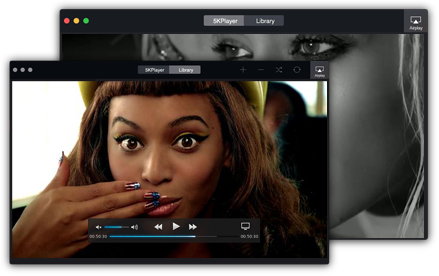
Top 10 Best Media Player 2017 – Windows,Mac & Linux

Best Media Player 2017 Edition: In this hectic world PC’s are the major source of entertainment. People usually spend most of their time watching movies, TV shows or listen to music. For this, we need media players. Media players are that software which helps us to run different audio and video files on our PC’s. For these guys who really are passionate about music and watching videos, I am damn sure that the default OS’s media player is not enough for them. There are many reasons but the main reason is that the default media player doesn’t support all the file types. We need to find a player which can play almost all files and give us greater experience with our videos and audio. Here in this post we, making your task easier, have compiled a list of best media player 2017.
Image result for Top 10 Best Media Player 2017
#1 VLC Player
VLC media player is one of the best players that is available in the market. Whenever we talk about best players VLC’s name comes to everyone’s mind. Reason being it is having a simple user interface and it supports all the audio and video formats. If you are fed up of its looks you can also install different skins to it. One of the main reason of its being best is that it is available free. If you ask me I will surely recommend this software to you.

Best Media Player 2016

#2 KM Player
KM Player is another good choice when you are mainly watching movies. This player supports file formats of any type and can play the videos very smoothly. Apart from that, it comes up with many more interesting features like support for 3D, 2K, 4K and UHD videos. Users can also set up their audio and video libraries in it.
Best Media Player 2016
#3 MPC-HC
Media player classic- Home cinema (MPC-HC) is also one of the most lightweight and best media players that can be installed on PCs. We can say it is a one stop solution for all the video requirements. It can play almost all kinds of audio and videos formats. Its interesting feature is that you can even record the TV videos clips with help of TV tuner. This software is free of cost.

Best Media Player 2016

#4 GOM media player
GOM player is another good software for audio and video this player can play almost every file type. It is having user-friendly interface .apart from this it is having the phone number of advanced features like it gives its users a full playback speed control, video effects, and audio captures. You can even download skins from the internet if you get bored using a single skin.


Best Media Player 2016
#5 5K Player
If you are fond of playing HD videos then this player is for you. It is all about HD videos on your device. This player is able to play 4K and 5K videos on your PC along with MP3 audio files. This is a very lightweight software and is having all the features of a media player. Its interesting feature is that you can even download videos directly from YouTube, Daily Motion, and other video streaming sites.


Best Media Player 2016
#6 Pot Player
Pot player is another free player that is available for windows. It is best because it is having its own hardware acceleration feature which makes sure that the video is played without any hindrance even on PC’s having low hardware. Another cool feature is that it supports all kinds of 3D glasses which make experience with 3D movies awesome. Moreover, it supports almost every codec that is available.
Best Media Player 2016
#7 UM Player
UM, player is a light weight player that can be used for both audio and video files. This software is freely available and is having amazing functions. It has a very simple and very interactive user interface. It is also having support for a large number of codec so any video file can be played without any worries, It also provides the facility of automatically downloading subtitles for videos.

Best Media Player 2016

#8 DivX Player
DivX player is basically created for HQ videos. if you don’t want to ruin your high-quality video experience then you must go for this. DivX player supports almost all the popular video formats. It is having a recently watched playlist which makes sure that you can quickly watch your recently watched videos.
Best Media Player 2016
#9 Real player
If you are traveling and want to access your favorite movie or video but don’t want to carry them with you every time them real player is your best choice as it let you save your videos to the cloud so that they can be easily accessed anywhere anytime. The free version of this software is having almost all the features. Apart from watching videos, you can even share your videos.

Best Media Player 2016

#10 Plex
Plex is another player which is used for watching videos or playing audio. It is having a very user-friendly interface. This media player also lets its users upload video on the online space provided so that you can watch your favorite movies anywhere. It also lets users stream videos from other streaming services like Netflix etc.
Best Media Player 2016
So, friends, these were some of the from best media player 2017 edition list. Hope you like them and will install one of them. If you think that your favorite has been missed out them do mention them in the comments section below. Thanks for reading this post. Do share it with your friends.