Showing posts with label Pc Hacking Tricks. Show all posts

Monday, 31 July 2017

How to Block Someone’s Internet Connection using Notepad

In this trick, I am going to show you how you can block someone’s Internet connection using notepad. We will be creating a batch file using notepad which will execute our command that stops internet connection. Creating of the batch file is simple and take less than two minutes. The tutorial also includes how you can Start the internet connection after blocking so that you don’t have any problems.
Image result for How to block someone’s Internet Connection using Notepad

Tutorial:

Blocking Internet Connection:
  1. Open Notepad.
    Right Click > New > Text Document
  2. Type the command below:
    @Echo off
    Ipconfig/release

    1. Save the file as ‘anything.bat’. For Eg: block-internet.bat  
    Now whenever you open this file, the internet connection of the computer will be lost.

    What this Command Exactly does?
    When we run this command, the IP Address of the computer lost and therefore the internet connection is stopped.

    Starting Internet Connection:

    1. Open Notepad.
    2. Type the command below:
      @Echo off
      Ipconfig/renew
  3. Save this file as ‘anything.bat‘. For Eg: start-internet.bat
  4. Now whenever you open this file, the internet connection of pc will start again. Because this command will renew the IP Address of the computer.

Wednesday, 19 July 2017

Top Best Laptop's For Programmers And Hackers

Programmers and hackers always need the best laptop for their jobs. A programmer needs a laptop which should be best for coding and programming and a Hacker needs a laptop which must have Linux based Operating system.
Image result for Best Laptops for Hackers and Programmers
They don’t like to deal with the brands of computers as they like to assemble their laptops with bleeding edge technology. Now in this article, we will discuss the Best Laptops for Hackers as well as Programmers too.

Here is some list of laptops which a programmer can use to conduct his codings and programming.

Best Laptops for Programmers (Programming)

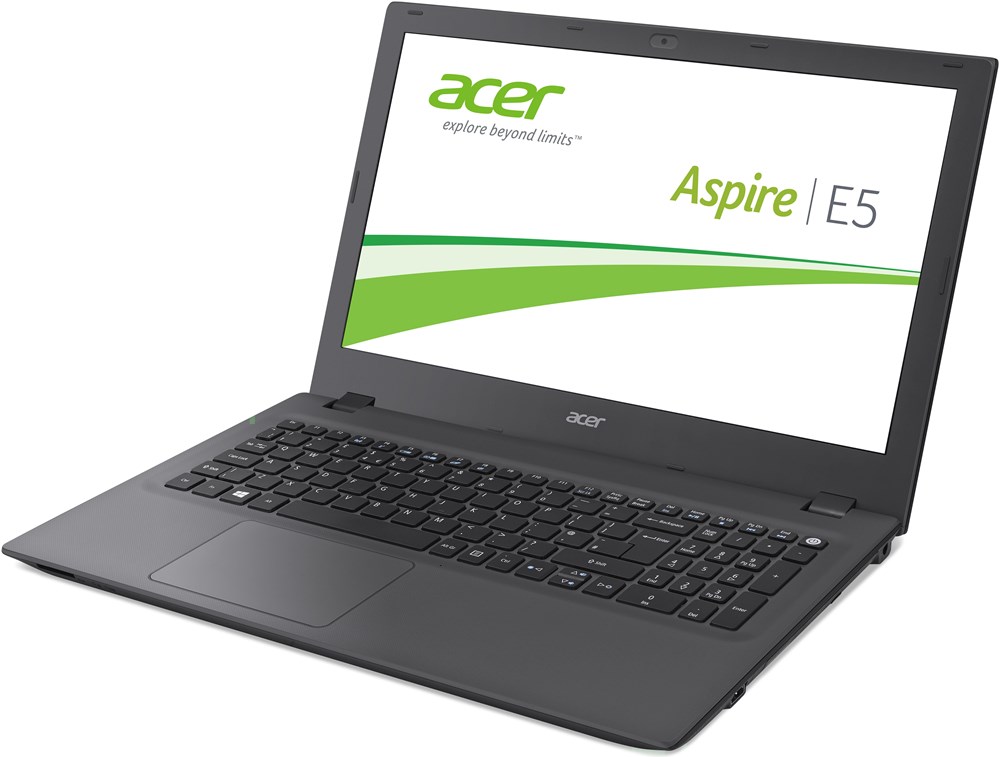
1. Acer Aspire E5-573G
This laptop has been considered the best in the budget and powerful laptop for programmers. It has diverse specifications which a programmer wants in his we will list some of his specifications which are as follows:-
  • It has 6-inch Display with Full HD LED backlit has (1920 x 1080 resolution).
  • Intel core i5 processor 2.2 GHz Intel Core 5th Generation .
  • Operating system Windows 10
  • HDMI port and 802.11ac Wi-Fi
  • SDRAM Memory with 8GB DDR3L
  • Has hard drive 1TB 5400RPM SATA
  • 2 GB of DDR VRAM with NVIDIA GeForce 940M.
Acer Aspire E5-573G
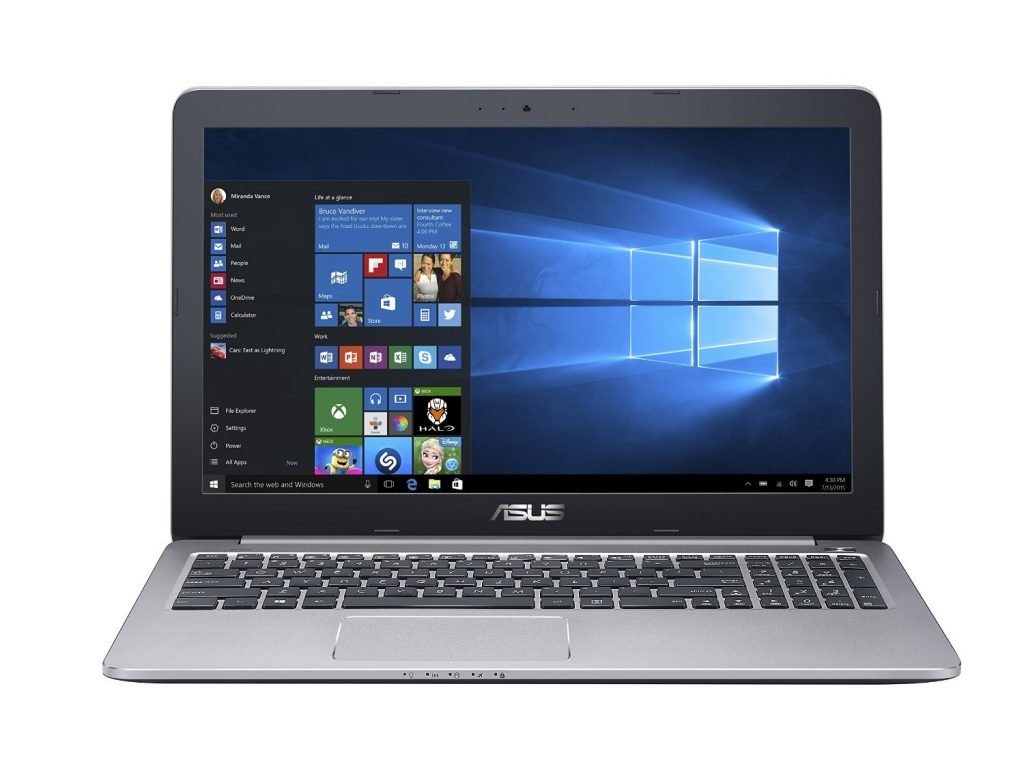
2. Asus K501UX-AH71
This is the best laptop for coding as well as for gaming too. We can it is a monster if we talk about specifications. It is called the good combination of software. Following are the specifications of Asus K501UX-AH71 are as following:-
  • Having Matte FHD display in 15.6 inches with 1920 X 1080 resolution.
  • 8 GB memory along with the storage of SSD storage of 256GBalong.
  • Operating System used is Windows 10.
  • Keyboard with backlights.
  • Ultra-fast Wi-Fi with Dual-Band 802.11AC.
  • Bluetooth 4.0 and 2 x USB 3.0, 2 x USB 2.0, 1 x HDMI.
  • Gaming graphic cards having NVIDIA GeForce GTX 950M.
  • Skylake Intel Core processor i7-6500U 2.5GHz (Turbo up to 3.1GHz)
Asus K501UX-AH71
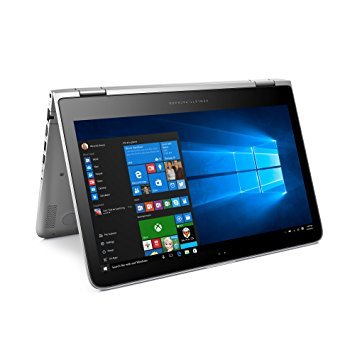
3. HP Pavilion 13-s128nr
Best ever programming laptop for programmers. It is the strongest offering if we talk in the terms of programming. HP Pavilion is app-loving, friend-connecting and 360 degrees bending machine. One can experience fast start-ups with Windows 10. Hera is some below-written specifications:-
  • SDRAM memory with 8GB DDR3L.
  • Users use Operating System Windows 10.
  • Has 3 USB ports two with 3.0 and one with 2.0.
  • Battery life up to 11 hours and 45 minutes.
  • Total graphics memory with Intel HD Graphics 520 with up to 4052MB.
  • Solid state drive with 128GB and no optical drive here.
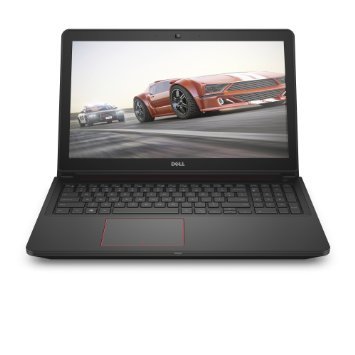
HP Pavilion 13-s128nr5. Dell Inspiron i7559-763BLK FHD
It is a low budget laptop and if you prefer to have a mediocre screen then this laptop is best for enhancing your programming skills. Following are the specifications and features of Dell Inspiron i7559-763BLK FHD:-
  • Storage up to 1 TB.
  • Has précised gaming mouse sector with 16,000 DPI.
  • Has Intel Quad core processor with i7-6700HQ 2.6 GHz.
  • NVIDIA GeForce GTX 960M.
  • Windows 10 Operating System used here.
  • Anti-Glare LED-Backlit with 6 Inch FHD (1920 x 1080 pixels)
Dell Inspiron i7559-763BLK FHD
6. Apple Laptop Programming MJVE2LL/A MacBook Air
It is the notebook laptop which has been considered best for personal use also. Multitasking laptop and stays forward in terms of performance. It has following features:-
  • Bluetooth 4.0 and Two USB ports 3.0
  • LED-backlit Glossy widescreen display has 13.3 inch
  • Facetime camera with HD and 720p
  • 3 MB shared cache with 1.6GHz Intel Core i5 dual-core processor.
  • LPDDR3 RAM with 4GB of 1600 MHz.
Apple Laptop Programming MJVE2LL/A MacBook Air
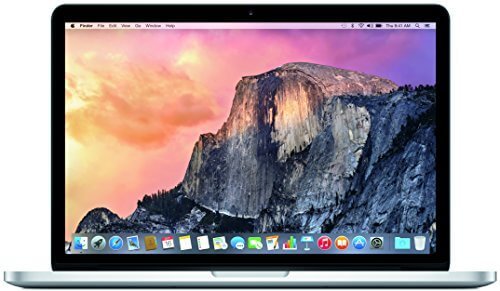
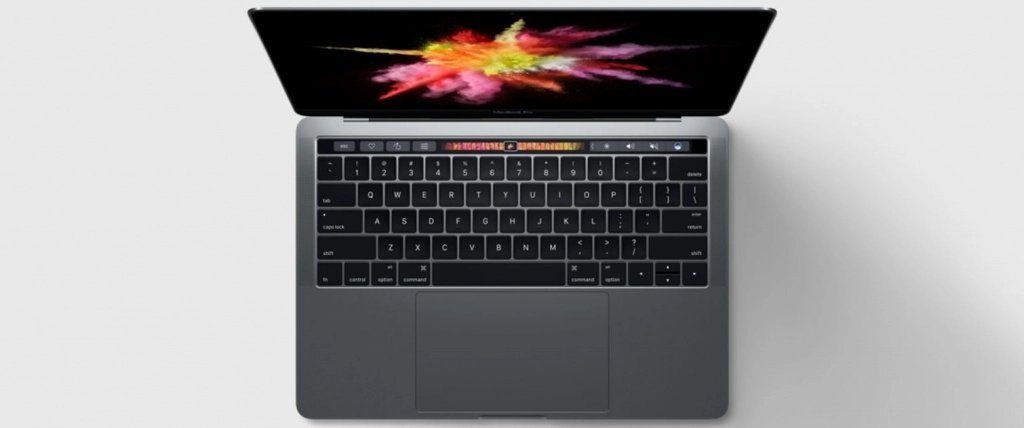
7. Apple MacBook Pro 13-inch
Till date, Apple MacBook Pro 13-inch is the best laptop among programmers. Faster and powerful. Following are the specifications of the laptop are as following:-
  • MAC OS X is used as operating system.
  • Intel Iris Graphics 540 are used in it.
  • Two ports are used; one used for charging, and for Display USB Gen 2.
  • Facetime HD camera with 720p
  • Has finest Retina Display with 13.3 inches (2560 x 1600) LED-backlit display with IPS technology.
  • Onboard memory with 8GB of 1866MHz LPDDR3.
Apple MacBook Pro 13-inch
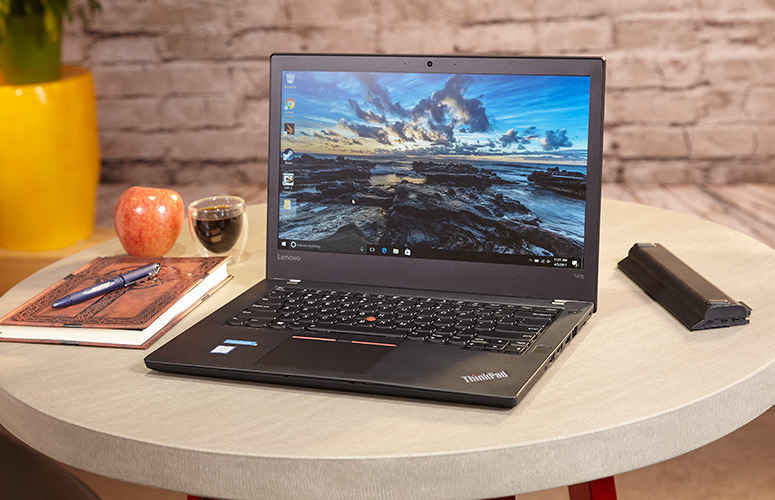
8. Lenovo ThinkPad T470
It is called best and overall business laptop beside it solves the problem of programmers. It is more powerful and more efficient and has more security options. Following are the specifications of Lenovo Thinkpad T470:-
  • The processor used here is Intel Core i5-7200U 2.5 GHz.
  • It has a display size of 14 inches.
  • The mainboard used here is Intel Kaby Lake-U Premium PCH.
  • The battery life of laptop is 3-cell LiPo internal (24 Wh) + 3-cell Li-ion (24 Wh)
  • The Operating system used here is Microsoft Windows 10 Pro 64 Bit.
Lenovo ThinkPad T470
Now, we will talk about some laptops which are used by hackers which are as mentioned below.

Top 5 Best Laptops for Hackers (Hacking)

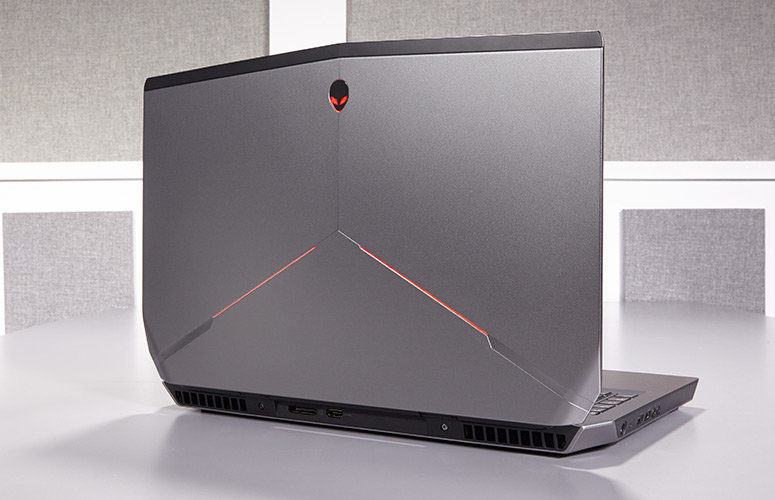
1. Alienware 17 R3
It has upgraded his winning formula for gaming laptops. It has Alienware’s signature spaceship inspired case, more customizable lights, and comfy keyboard. It has following features and specifications:-
  • The operating system used here is Windows 10.
  • It has RAM and hard drive size is 16 GB.
  • The graphic cards are used here is NVIDIA GeForce GTX 980M with 8GB GDDR5.
  • Bluetooth 4.1 is used and Wi-Fi is 802.11AC.
  • 4 USB ports are used
  • The card slot is SD memory reader.
Alienware 17 R3
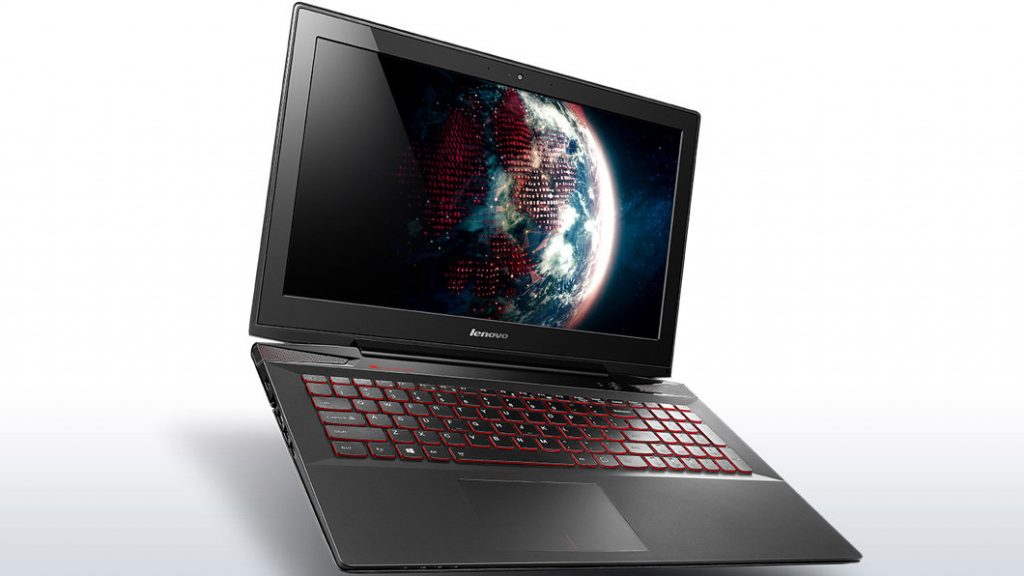
2. Lenovo Y50-70
It is stylish and powerful gaming school which has been powered by Intel Core i7. To justify his price, Lenovo has upgraded the processor and storage.
It has following features and specifications:-
  • The CPU of the laptop is 2.4-GHz Intel Core i7-4700HQ.
  • The operating System used here is Windows 8.1
  • The RAM of the system is 16 GB.
  • It has secondary hard drive of size 1TB
  • It has wireless connectivity Wi-Fi and Bluetooth 4.0
  • Built-in HD webcam and backlit keyboard
Alienware 17 R3
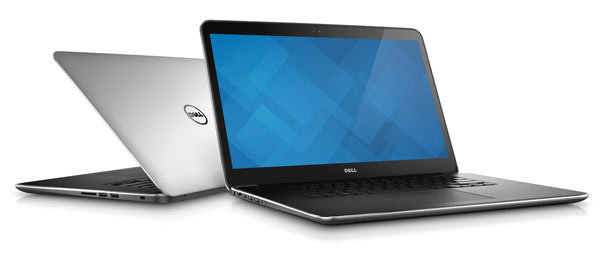
3. Dell XPS 15 9530
It has 4K display design which is relatively rare on TV. Has crystal sharp 15-inch screen which is good for photo and video editors
Following are the specifications of the laptop are as given below:-
  • The CPU used here is Intel Core i7-4712HQ Processor.
  • Windows 8.1 used as an Operating
  • The size of hard drive is 512 GB and type is SSD Drive.
  • Wireless connectivities are Wi-Fi 802.11ac and Bluetooth 4.0
  • Ports used here are USB 3.0 and HDMI
  • The weight of the laptop is 4.44 pounds.
Dell XPS 15 9530
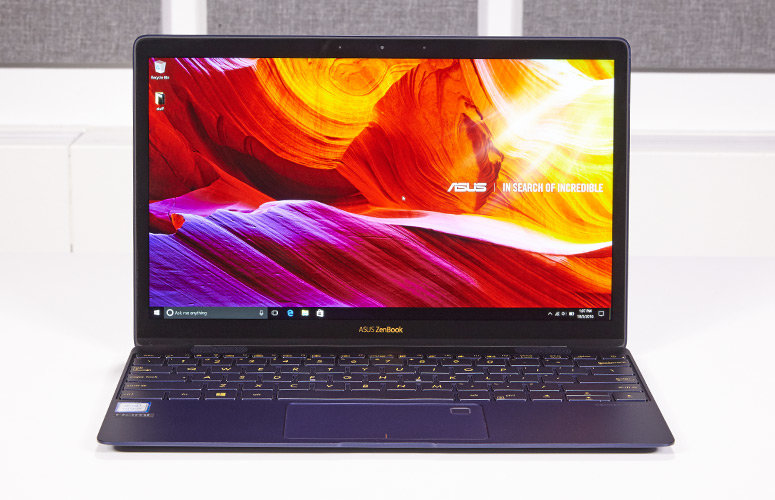
4. Asus Zenbook UX305FA
It is the world most prestigious laptop with great performance. It has a built-in fingerprint sensor and one-touch login using Windows Hello feature.
It has following specifications:-
  • CPU used here is Intel Core i7-7500U.
  • The size of hard drive is 512 GB and type is PCIe SSD
  • The display size is 12.5
  • The graphic cards used here are Intel HD Graphics 620
  • Wireless connectivity is 802.11 b/g/n/ac Wi-Fi
  • Provides one year
Asus Zenbook UX305FA
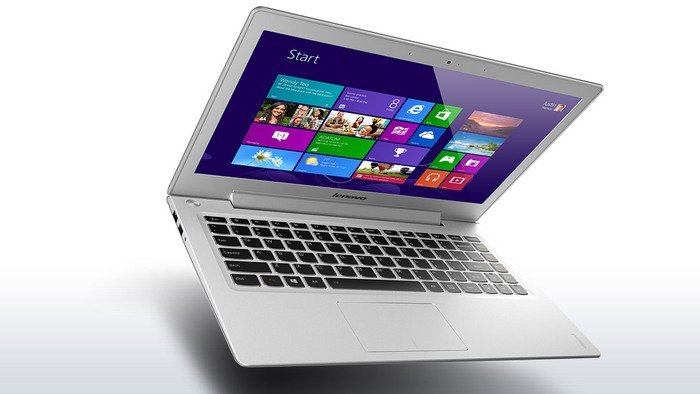
5. Lenovo Ideapad u430
It has all the great ingredients that require for the great ultrabook. It has great features like good voice control. Here are some specifications:-
  • The CPU used here is 1.6GHz Intel Core i5-4200U
  • The Display of screen is 14.
  • The size of hard drive is 500 GB and speed is 5400 rpm and the type of hard drive is Serial ATA Hybrid
  • No optical drive.
  • Wireless connections are 802.11b/g/n
  • Wi-Fi Model: Intel Wireless-N 7260
  • Bluetooth 4.0
Lenovo Ideapad u430
These are the Best Laptop for Hackers & Programmers, let us know if you have any suggestions at trickzbuzzz@gmail.com

Wednesday, 28 June 2017

Two 4GB Sticks Of RAM Or Four 2GB Sticks Of RAM What Is Batter For PC

Which Is Faster? Two 4GB Sticks Of RAM Or Four 2GB Sticks Of RAM

RAM Which stands for Random Access Memory, helps devices to run faster. If you love to play games on your desktop computer, then you will know the benefits of having some extra RAM.

Well, let me ask you one question first, how much RAM does your computer have? Recently, we came across one interesting question asked by Techviral readers on the Facebook page.

The user was planning to build an assembled computer system, he had asked us which will be better for gaming purpose, he is building a new core i3 system, and planning to install 8GB RAM. The user asked us which will be better four 2GB RAM or two 4GB RAM?

We searched the internet for the answer and found a technical answer at Experts Exchange where Garycase answered that nowadays desktop computers deploy unbuffered RAM modules and if you have more than 2 modules installed, then you may experience an issue of large loads on the address and data buses.

Actually, the memory subsystem sees one load per memory chip. So, with 2 modules that are up to 32 loads and with 4 modules installed that’s as many as 64 electrical loads which sound bad.

“Some systems automatically adjust for this higher load by either increasing the voltage a small amount; reducing the clock frequency of the memory (thus slightly slowing it down); or by adding a cycle to the SPD’s latency setting (again, slightly slowing it down).”

So, if we have to answer this question in short, then we would say that memory with just 2 modules is more reliable. However, you won’t notice any measurable difference if you have 4 modules.

So, what do you think about this? Share your views in the comment box below.

Sunday, 7 May 2017

How to Allow Remote Access from Your PC

If you are a senior official in your office and want to keep tabs on your employees, but you don’t want to walk down several aisles or floors to get to their computer, do not worry! Windows has a solution for this: Remote Desktop Connection. With Remote Desktop Connection, you can remotely access your employee’s computer (i.e., the host computer) from your PC (i.e., the client computer). Just configure a few network settings, and you’re good to go!

 1. Access Remote Desktop Connection. Open the Start menu and click on “All Programs.” Select the Accessories folder in the list of options displayed, then click on “Remote Desktop Connection.” A dialog box will appear.
2. Type the name of the computer you want to connect to in the textbox. If you don’t know the name of the computer, you can choose the computer among the list of available ones in the network by clicking on the drop-down menu.
3. Click the “Options” button located at the bottom left corner of the dialog box. A new dialog box will open with a list of tabs at the top. Click on the “Display” tab to modify the size of the remote desktop. This can be done by dragging the pointer under the title “Display Configurations” to increase or decrease the size of the remote desktop.
4. Click the “Local Resources” tab next to the “Display” tab. Under the title “Local devices and resources,” check the boxes next to “Printers” and “Clipboard.” Here, you can access the printers and clipboard of your client system while working in the remote desktop (i.e., the host system).
5. Choose the local drives to access in the client system. Click the “More” button present to the left side of the two checkboxes to choose the local devices (drives) you will access in the client system while using the remotely controlled host system.
  • Check the appropriate checkboxes under the “Drives” that you want to use then click “OK.” The previous screen under “Local devices and resources” will appear.
6. Click the “Experience” tab. Change the connection speed between your client system and the host computer by clicking on the drop-down menu and choosing the appropriate connection.
  • Check the checkbox in the bottom left corner of the screen to reconnect automatically if connection is disrupted.
7. Click the “Connect” button located in the bottom right corner of the dialog box. A message will come up asking for a confirmation to connect. Click the “Connect” button located in the bottom right edge of the message, and a Windows Security dialog box will appear asking for your username and password.
8. Enter the username and password that is registered in the host computer. Click the “OK” button in the bottom right corner of the screen to proceed. (make sure the host computer is password protected on particular username you want to log in to. it is hard to connect to non-password username)
  • It can take up to several minutes to get connected to the host system.

Monday, 27 February 2017

How To Control Your Mouse Cursor Using Keyboard Without Any Software

Description 
Today I’m Going To Show You How To Control Your Mouse Cursor With The Help Of Your Keyboard. This Is Very Easy To Control Your Mouse Cursor With Your Keyboard. If You Don’t Have Mouse Or Your Mouse Is Broken Then You Can Control Your Computer With Keyboard. If You Don’t Know How To Do Then You Can See Video Guide. Now Follow Step By Step
Guide 
1.       Go To Your Start Menu And Open Control Panel
2.       In The Control Panel Go To “Ease Of Access”
3.       Now Click “Change How Your Mouse Works”
4.       Now Click On Set Up Mouse Keys
5.       Now Tick The “Turn On Mouse Keys” And “Turn On Mouse Keys With Leftalt+Leftshift+NUM LOCK”
6.       Now Turn The Pointer Speed Full
7.       Tick Hold Down Ctrl To Speed Up And Shift To Slow
8.       In Other Setting Turn It ON
9.       Click On Apply And Click On Ok You Need To Click Ok Again
10.    You Can See A Mouse Like Icon In System Tray Double Click On It
11.    Control Panel Will Open And Click Ok
12.    That's All You Can Control Your Cursor With Hold Ctrl +1 To 9 Button

    Video Guide:-

Thursday, 23 February 2017

How to Activate Bandicam Screen Recorder Crack Key 100% Working Trick

Bandicam – Record Everything On Your PC
Bandicam Makes It Possible To Record A Certain Area On A PC Screen, Or A Program That Uses The Directx/OpenGL Graphic Technologies.
Bandicam Will Help You Carry Out A Video Record With High-Compression Ratio, While Keeping The Video Quality Closer To The Original Work, And Provides Performance Far Superior To Other Programs That Provide Similar Functions.
This Crack Works For Any Bandicam Version Above Version 2. If You Have An Older Version Of Bandicam, It's Time To Update  We Got The Crack.

Wednesday, 8 February 2017

How To Hack Windows 7-8-8.1-10 Administrator Password Using Pendrive Working With Proof -2017

How to Use Windows Password Refixer to Reset Windows Password

main-hackerwindows
Forgot your password for logging into your Windows unable to find any way to reset the password? So you are planning on reinstalling the system? There is no need. It takes a long time and causes data loss. Now use iSumsoft Windows Password Refixer to instantly reset your lost/forgotten Windows password. No matter you forgot local account password on Windows 10/8.1/8/7/Vista/XP/NT/2000/2012/2008/2003/2000 or Microsoft account password on Windows 10/8.1/8, iSumsoft Windows Password Refixer can help immediately reset the password. Following this tutorial shows how it works.

Step 1: Preparations

1. Download and install iSumsoft Windows Password Refixer on any one computer you can access as administrator.
2. Prepare a USB or CD/DVD flash drive.
 

Step 2.: Create a password reset disk

1. Run Windows Password Refixer, then choose one media type you will use to create a password reset disk.
Choose media type
2. Connect a USB or CD/DVD flash drive to the computer, note the name of the flash drive and click on the "Begin burning" button.
Select your flash drive.
3. After a few seconds, it successfully burns this software to your USB or CD/DVD.
Burning Successfully

Step 3: Boot locked computer from the disk

Insert the USB or CD/DVD flash drive with iSumsoft Windows Password Refixer burned into your password forgotten computer. And then set the computer to boot from USB drive or CD/DVD-ROM. After the computer boots up, "Windows Password Refixer" interface will be displayed.

Step 4: Reset Windows Password

As you can see on the window, it lists out all accounts in your locked Windows. Then you can select a user account whose password you want to reset. Then click the Reset Password button.
Select user account and click on Reset Password.
If you select a local admin/user account and then click the Reset Password button. It will prompt you a dialog box to ask you if you want to set the password to blank. Just click "Yes" to agree.
click on the Yes to set Windows password to blank
If you can see the password changed from "Unknown" to "Blank", that is to say, your Windows user account password has been reset to blank and you can login without a password.
Password is reset to blank
If you select a Microsoft account and then click the Reset Password button, it prompts a dialog box asking if you want to reset the password to iSumsoft@2017. Just click Yes to confirm.
Reset Microsoft account password
In addition: you can click the Add User button to add one user who has administrator privilege to your Windows.
Add User
After Windows password reset is complete, click the Reboot button and eject your USB or CD/DVD flash drive to restart your computer. Your computer will restart normally and you can log onto Windows with the new password.
Click on Reboot to reboot computer
Is it so easy? Windows Password Refixer tool is famous of its simple using and friendly interface. Come to get it if you have lost or forgotten your Windows password and have a try.

Video Guide


Sunday, 29 January 2017

How To Increase 1 GB Or 2 GB Memory/SD Into 4GB

1- First Of All Take A Backup Of Your Memory Card...
2- Now Download This Toolkit In Your Pc..By This Link
3- Extract 'increase internal space of memory Card Toolkit' which you have downloaded.
4- Now Put Your Memory In Computer..But First Take Backup...
5- After Backup Of Your Memory Then Open Drive Increaser.bat file from extracted folder.
6- After That The Script Will Open In Your Pc..It Will Ask You For Name Of Your Memory/Sd Card.. like Hacker (G)
7- Now Your Have To Enter Your Drive's Letter... If You Don't Know Your Drive's Letter Then Go To My Computer.
8- Here You Will See Your Drive's Letter
• for example because of it very important to be careful while entering your drive name. Like My drive's name is G:
9- Now Again Enter Your Drive Name...
10- Now Wait some time. It Script Can Take 2-10 Minutes Or Maybe More...
11- It's All Done Now See Your Memory Card Internal Space If It Is 4 GB ( Then You Have Good Luck ).

Wednesday, 25 January 2017

How To Change Your IP Address In Windows

The IP address is the sole identifier of the computer connecting to the network, working on the basis Internet. The IP address is assigned by your ISP usually consists of four groups of numbers written through the point. For example 132.12.3.45
picsart_01-22-03-14-34

Do you know how to change the IP address of your computer? If you don’t know then here, we will share working methods to change the IP Address of your computer. So, let’s know about it.
Step 1: Open search box and search for ‘Network and Sharing Center’ and hit ENTER.
Change Your IP Address In Windows
Step 2: Now select the option ‘Change Adapter Settings’
Change Your IP Address In Windows
Step 3: Right click on your connected network and click on ‘Properties’
Change Your IP Address In Windows
Step 4: Now select ‘Internet Protocol Version 4 (TCP/IPv4)’ and click on properties.
Change Your IP Address In Windows
Step 5: Now choose the option ‘Use the following IP address’ and here you can change the IP address, subnet mask, default gateway and DNS server addresses.
Change Your IP Address In Windows
To check whether your IP address is changed or not, just enter IP config in CMD and hit enter.
This is the easiest way to replace the IP address of your Windows computer, If you are facing any difficulty at any step, discuss with us in the comment section below. Share this post with your friends too!

How To Shutdown Computer Using Pendrive

Usually we shutdown the computer or the laptop by continuous pressing or holding the power button to shut down your PC for few seconds, You can also able to shutdown the computer using the pen drive. Just the notepad tricks you can use the same technique in the Pendrive to close the PC/laptop.it is possible by typing the batch file in the notepad. The system will turn off when you insert the Pendrive to the PC or the laptop..Just surprise your friends with that simple trick.
Step 1:>copy this  code into notepad:
@echo off
shutdown -s -t 00
screenshot-10
@echo off                                                                                                    shutdown -s-t oo
Save it with .bat extension (for eg: Shutdown.bat).
screenshot-11
Save it with .bat extension (for eg: Shubham.bat)
Step 2:>Now again open the notepad and copy this code:
[autorun]
Open=shutdown.bat
Action=Mouse Disable
screenshot-12
(autorun)                                                                                                                                                                open=shutdown.bat                                                                                                           action= mouse disable
Save it as “autorun.inf”
screenshot-13
Save it as "autorun.inf"
//don't forget to change the "autorun.inf"
Step 3:>Then copy the two files in your pen drive or victim's pen drive.
That's all whenever the victim inserts his pen drive, the system will be turned off automatically.
want any help ? or want to say thanks, comment here