Showing posts with label Technology. Show all posts

Friday, 8 September 2017

Apple Leak Reveals iPhone 8 Nasty Surprises

It is clear what the iPhone 8 will get right: its new design, the upgraded (if heavily protruding) camera, a potentially revolutionary unlocking system, and the significant spec bump. But now there is an explanation for two nasty surprises Apple AAPL -0.4%’s new iPhone will also deliver...

‘Great Secret Features’ and ‘Nasty Surprises’ are my regular columns investigating operating system updates for the best features / biggest problems hidden behind the headlines.

Famously reliable KGI Securities analyst Ming-Chi Kuo has spilled the beans in a new report obtained by 9to5Mac and, put bluntly, it’s all Samsung’s fault.


In short, Kuo says Samsung has Apple over a barrel. He reveals Samsung is the sole supplier of OLED panels for the iPhone 8’s headline feature, it’s 5.8-inch OLED display, and as such is demanding upwards of $130 per display.

By comparison, the iPhone 7 Plus LCD display costs Apple only $45-55 and this is the biggest factor behind the iPhone 8’s most unpalatable element: the astronomical asking price. Why hasn’t Apple gone elsewhere? Because Samsung was the only company which was able to supply OLED panels in the quantity Apple requires.

Apple is already trying to fix this. It recently invested $2.7BN in LG to build a new OLED manufacturing plant, though that won’t be ready until 2018 at the earliest. In Kuo’s words: “Apple is in urgent need of finding a second source of OLED.”

But this is just part one. The second area where the iPhone 8 will inevitably disappoint many is its removal of the Touch ID fingerprint sensor.


Again Kuo lays the blame on Samsung’s OLED panels. He claims Samsung was unable to create an OLED panel with a favorable scan-through performance for the fingerprint sensor to operate effectively. Apple was not prepared to copy Samsung by putting the sensor on the back or, like Sony, in the power button so it scrapped Touch ID on the iPhone 8’s completely and will gamble on Face ID handling everything instead.

But Samsung’s OLED is far from the only culprit here. Previous reports have cited the introduction of fast charging and wireless charging, among others, as adding significant additional cost and complexity to the iPhone 8’s assembly.

Cynics will point out features like OLED, fast charging and wireless charging are merely catch-ups and Apple shouldn’t have been so far behind in the first place to feel forced into making them all in a single generation. Then again all these upgrades may just make the iPhone 8 worth both its high price and the omission of Touch ID.

Whichever position you take, we won’t have to wait long for answers. Apple has already confirmed, the iPhone 8 is launching very soon...

Thursday, 3 August 2017

Microsoft Launches ‘Eye Control’ Beta For Windows 10

Image result for Microsoft Launches ‘Eye Control’ Beta For Windows 10
To empower people with disabilities to operate an on-screen mouse and keyboard, Microsoft has announced a beta version of 'Eye Control' feature for Windows 10 that can be accessed by using eye movements.

According to a blog post by Dona Sarkar, Software Engineer at Microsoft, the 'Eye Control' feature requires a compatible eye tracker, like the 'Tobii Eye Tracker 4C', which can unlock access to the Windows operating system.

Once 'Eye Control' is turned on, a launch pad appears on the screen that allows a user to access the mouse, keyboard, text-to-speech and to preposition the User Interface (UI) to the opposite side of the screen.

"To interact with the UI for 'Eye Control', simply look at the UI with your eyes until the button activates. A visual accordance will appear around the UI that you are looking at," Sarkar said.

Users can control the mouse by simply selecting the mouse from the launch pad, position their eyes on the screen where they want the cursor to be placed.

Users can select the keyboard from the launch pad and dwell at the characters they want to type.

However, the new tool faces challenges in direct sunlight and, therefore, the company said the device might require new calibration when moving to a location with different lighting conditions.

Also, the launch pad partially blocks the 'Tobii UI' during device calibration.

"To work around this, turn off Eye Control during calibration and turn it back on when you are done," Sarkar noted.

The 'Eye Control' feature currently supports only selected eye trackers of 'Tobii' hardware.

IANS

Monday, 24 July 2017

After Buying A Domain Name, What's The Next Step In Starting A Website? Should You Use Site Builders?

Here are the two steps to going live on the web:
1. Register your domain.
2. Rent some server space.
As you already have a domain, we will jump to point 2 - Rent server space to 'host' your website
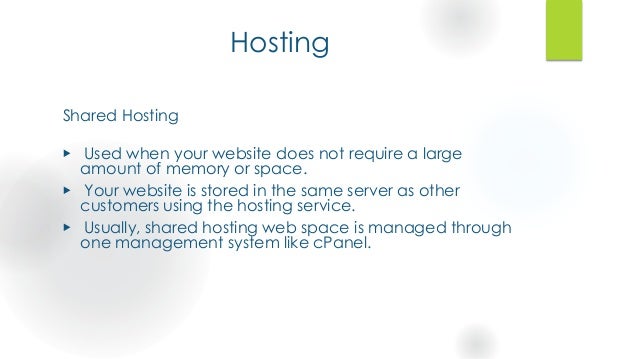
When renting space on a server so that it can serve your website on the World Wide Web, it is often called 'hosting'. Companies that provide this service are often called 'host' or hosting companies. You can choose which type of hosting would you prefer: shared hosting, dedicated hosting, VPS hosting or cloud hosting.
Image result for After buying a domain name, what's the next
After you registered your domain, all you need to do it contact a hosting company and tell them you want to host your website and that you have a proper domain name. They will guide you through the process and you should be live on the web in no time! Some hosting companies do provide with a domain name too. You can ask them for more details if you need any.
A cheaper option
Some people may not want to buy a domain or go for free hosting because they have just a personal website for fun or practice. You can still get your website live on the web by using a free hosting service that allows creating what they call a 'sub-domain'. A sub-domain is just a domain that is part of another domain. In that case, your website address will be like, for example:
Or it could be like:
This is fine for fun/project websites, but if you are serious about your website (say it's your business website) using sub-domains is like taking someone else's business card and writing your name on it! Also, there are security concerns.
One last point, I've heard of free hosting services that will allow you to host proper domains with them for free and without annoying ads that other free host will insert into your pages. But I've never used them, and in my opinion, you always get what you pay for.
Choosing the Right Hosting plan
You should check out the following before choosing which plan to go for as per your requirement:
1. Amount of web space
Image result for Amount of web space
This means how much web space the web hosting company will allow you to use for your web site. This can vary but usually starts at around the 100 megabytes mark, and can go all the way up to 1000 or 2000 megabytes. For all but the biggest web sites, 100MB is more than adequate. Some web hosting companies offer much more space – they are able to do this because they know that the average web site comes in at less than 100 megabytes.
2. Number of email addresses
Related image
This means how many emails address the hosting company will permit you to have. For budget accounts, this is usually somewhere between 1 and 10 email addresses. Some higher-end packages permit say 250 addresses.
3. Bandwidth (or data transfer)

This is a much-misunderstood measure, but it is really important if your web site starts to generate a lot of interest from web users. It means the amount of data your web site can transmit to web users. For example, if a web page in your web site is 10 kilobytes (about 1000 words on the page) in size, and one Internet user views it, you have used 10 kilobytes of bandwidth. If 10 users request that page you have used 100 kilobytes of bandwidth. Bandwidth is normally measured monthly.
Most small web sites will need under half a gigabyte of bandwidth per month. That means you can serve about 52,000 web pages per month (assuming the pages are an average of 10 kilobytes in size).
4. Windows or UNIX?
Image result for Windows or UNIX
The last major differentiating factor between web hosting packages is the operating system. Just like your desktop computer (probably running Microsoft Windows or an Apple Mac OS), web servers run an operating system. It’s the software that makes the computer go. There are two major types of OS in the web hosting world – Windows and UNIX. The major variant of UNIX is called Linux.
For basic web sites, it doesn’t really matter whether you choose Linux or Windows hosting. Your pages will work just the same whichever you choose. But for more advanced users it pays to make the right choice.
Which OS to choose comes down to what you want to do with your web site. For example, if you want to install certain apps such as WordPress then you need to know which OS the app runs best on. Here are some examples:
Apps that run better on Linux:
WordPress blogging system
 Magento shopping cart
 Joomla website building software
Apps that run better on Windows:
Umbraco website building software
 nop commerce shopping cart
 BlogEngine.net blogging system
But – almost all the Linux apps can also run on Windows!
Moving your web site files onto the server
Image result for Moving your website files onto the server
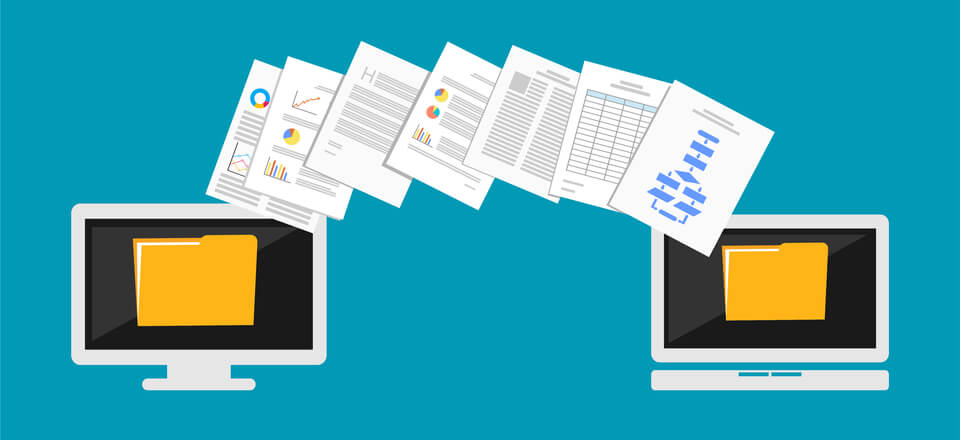
After you have your domain name registered and your hosting service in place, the last step is to upload the website to the server. You can transfer your website to your host's server using an FTP program.
An FTP program is a type of software that is used to move files from one computer to another over the Internet. FTP is the acronym for File Transfer Protocol, this just means that this is a 'way' of moving files. There are several free FTP programs you can use to move your files onto the server, and many HTML editors and web design programs like Dreamweaver have FTP capabilities built in.
One option you probably have to FTP your files to the server is Internet Explorer. Internet Explorer 5 and up have an FTP program built right in and you can use it by just typing in the FTP address of the server in the address bar preceded by the keyword: FTP. Here is an example:

Tuesday, 18 July 2017

Connect Your Android Device to Your TV Using an HDMI Cable

Basic Introduction About HDMI

  • HDMI is short for High Definition Multimedia Interface
    .
It is a compact audio and video interface system of transmitting data digitally. Through the use of an HDMI cable, it is possible to send an image, sound, video, or other files from a source -- Blu-ray, audio box, DVD, or in this case, your Android device -- to a second display, like a monitor, TV, or projector. HDMI is presently the kind of cable with the highest capacity for delivering high definition data/information.
  • Basically, HDMI simplifies your wiring, merging the red, blue, green, yellow, and white cables into a single cable
    .
The high capacity wire allows for sending command codes along with pictures and sounds.\
  • Note
    :
You'll need to make sure that your phone can be connected to your TV monitor via HDMI cable. First, you have to see if your phone has an HDMI slot or connector. If it does, you'll need to purchase an HDMI cable. You'll need to make sure your TV or monitor has an HDMI feature as well (most TVs manufactured in the last few years will). Once you have all these items, you can immediately enjoy viewing your applications, watching your movies, and playing your games on your larger screen, all fed directly from your mobile phone.

Connection instructions

  • Below is a typical back view of an LCD/LED TV with two HDMI sockets
    .
Simply push the cable into an HDMI socket. Also, make a note of which port number you plugged the cable into so that you can switch to that channel/input for viewing your phone's content.
  • Plug the HDMI cable into your Android's HDMI jack
    .
After connecting the cable to your TV set, you can now connect the other end to your Android mobile. The jack appears similar to a micro-USB connector and can be sometimes found next to it. The mobile pictured below even sports an HDMI cable compartment.
  • Select which option you want to use for viewing HDMI
    .
Once the connection is made between the TV set and your Android device, you can now choose which files you want to project on the TV screen, as well as tweak the resolution size and many other options found in the output settings (see below).
Your gallery application allows you to choose from photos and videos located in your phone's Library. If you open your music application, you can listen to whichever artist, album, or playlist you like. You'll be able to see both the Gallery and Music applications on the TV screen once they're opened. 
You also have the option of using the "Mirror on display" function, which duplicates your Android phone's screen and displays it on your TV.
  • Disconnect the HDMI cable when you're finished
    .
You don't need to "safely remove" your Android device from the TV set. To disconnect, simply unplug the cable.

Tips Tricks & Warnings

  • Please note that HDMI pins are somewhat delicate, so be careful when inserting the end of the.
  • Your device may load after connecting to your TV set, so wait for it to load instead of immediately eject the cable.
  • Change the HDMI settings of your Android phone if you're having difficulties. Check the HDMI format accessible through your phone's settings. See if there are more preferable refresh rates or resolutions that could result in easier access.
  • There are Android applications, like YouTube and Blockbuster, that won't allow users to use HDMI output. Usually, videos and photos from the gallery application are the only media that you can view.

Wednesday, 28 June 2017

Highest Price Mobile in The World of 2017

The Diamond Rose iPhone 32 GB, was come with most expensive price This is the world’s most Expensive phone in 2017. Because the phone made through very precious diamonds. The Diamond Rose iPhone 32 GB made by Apple Company.


Diamond rose Back cover has Apple icon, design with “53” precious Diamonds and front navigation button design also with Diamonds.
The diamond rose design by Stuart Huges, with his hands, he decorated this phone with 500 pink color diamonds. The diamond rose starting price is The US $ 82,00,000 If you count this phone Price in Euro currency So the Diamond Rose iPhone (32 GB) Price is € 75,5,370.
  • Price in India: 52,190,1000.
  • PKR Price is: 86,001,6000.
  • United Arab Emirates Dirham: 30,11,859.
Let’s know About this phone features and specifications The diamond rose come with the 3.5 inches touchscreen display with 640 × 960 pixels resolution The Diamond rose 32 GB screen protection Corning Gorilla Glass, Oleophobic.
Diamond Rose built-in memory 32 GB, 8 megapixels primary Camera with Led flashlight and 2 megapixels secondary camera, this phone runs OS iOS 4.0.
ColorBlack
Wieght140 g (4.94 oz)
Memory32 GB, 512 MB RAM
Dispaly3.5 inches
Camera8 MP Back  And Front 2 MP
SoftwareIOS 4.0
PriceUS $ $82,00,000

Monday, 20 February 2017

What We can Do YouTube Video Claim Safe For Copyrights

What can I do about this claim ?


When you get a Content ID claim, there are a few different things you can do, depending on the situation:
  • Do nothing: If you agree with the claim, you can just move on. You can always change your mind later if you disagree with the claim.
  • Remove the music: If you get a claim for a piece of music in your video, you can try to remove the song without having to edit and upload a new video. Learn more.
  • Swap the music: If music in your video is claimed, but you still want to have music in the background, you can swap out your audio track with one of our free-to-use songs. Learn more.
  • Share revenue: If you’re a member of our YouTube Partner Program, and you've included music in your video, you may be able to share revenue with the music's rights owner(s). Learn more.
  • Dispute the claim: If you have the required rights to use the copyright-protected content in your video, or if you think the system has somehow misidentified your video, you can dispute the claim.
    To dispute the claim, go to your copyright notices and click the link to the right of the video's Edit menu. This will take you to a page with information about what’s been claimed in your video and who claimed it. You’ll also find the option to dispute the claim on this page.
If you dispute a claim without a valid reason, the content owner may choose to take down your video. If this happens, your account will get a copyright strike.

Saturday, 18 February 2017

How to Change Copyright Footer on Blogger (Blogspot) Website

How to Change Copyright Footer on Blogger Website
Follow Steps:-
1.      First Of All Open Your Blogger Website Witch You Want To Change Your Copyright Creditor Name
2.      Ok We Can See My Blogger Website Footer
3.      Open New Tab Blogger.Com
4.      Click On Template Button
5.      Now Click On Edit HTML
6.      Click Your Mouse Cursor In HTML Coding Box
7.      Now Open Your Website Tab And Drag Your Page On Footer
8.      Here ↓
9.      “Copyright © 2017 Trickz Buzz – Crafted With By Templatesyrad ׀ Distributed By Hack’er
10.  Open Edit HTML Tab
11.  Click In Html Box And Press Ctrl+F  (Word Find Box)
12.  Type Crafted With And Click Enter
13.  Now Remove Templatesyrad In Coding And Put There What You Want Just Like “Durgesh”
14.  Same Process We Do In Distributed Press Ctrl+F
15.  Click Save Button
16.  Refresh Your Website Page

Thanks Friends for Watching My Video If Have Any Query Please Tell Me in Comment Box
You Can Also Mail Me Your Query on – Durgesh0496@Gmail.Com
And Please Friends Don’t Forget To Subscribe My Channel


Visit Website: - Http://Trickzbuzz.Blogspot.In


Wednesday, 25 January 2017

What is iBeacon

​                                                              What is iBeacon?


Beacons, not bacons. iBeacon is Apple’s version of the Bluetooth-based beacon concept, which allows Bluetooth devices to broadcast or receive tiny and static pieces of data within short distances. In simplistic words, it consists of two parts: a broadcaster (beacon device) and a receiver (smartphone app). The broadcaster is always advertising “I am here, and my ID is…”, while the receiver detects these Bluetooth radio packets and does whatever it needs to do based on how close or far it is from them. 

Think of beacons as "buttons or links to the physical world around you". In the same way that web pages rely on buttons as a primary way of user interaction, beacons are used by apps to trigger events and call actions, allowing users to interact with digital or physical things, such as door locks, discounts, automation systems or simple notifications. 

From a technical point of view, you can think of iBeacons as small digital lighthouses, just like those used to indicate where a port of shoreline is. Normally, the observer/receiver is an iOS app, while the broadcaster/transmitter can be a battery-powered sensor, an USB Bluetooth dongle, an Arduino kit, a Mac computer or an iOS device. The broadcaster side only sends data. The standard beacon advertisement consists of an UUID, a major and a minor value only. For example:

UUID: B9407F30-F5F8-466E-AFF9-25556B57FE6D
Major ID: 1
Minor ID: 2 

The broadcaster (iBeacon) doesn't do anything else besides sending this piece of information every fraction of a second or so. The UUID is an unique identifier. For example, if Starbucks decides to deploy beacon sensors inside its store and make an app that can tell the user once they arrive at a specific store, they would define a UUID that is unique to their app and the beacons inside their stores. Inside the stores, they would place beacon devices and configure each of them to use a different “minor” value. For example, at the store A, they would place all beacon devices broadcasting the Starbucks UUID, major value 1, minor 1 near the door, minor 2 near the mugs display and minor value 3 near the cashier. At store B, they would use the same UUID, but major 2 and minor values according to the location inside the store. 

With the information broadcasted by each beacon, the app can detect them and tell how close (or far) the phone is from each of them and then perform actions, display alerts to the user, offer discounts, turn lights on and off, open doors and so on. 

Tell me some applications that can de deployed using beacons 
Beacon technology empowers contextualisation based on proximity or location by connecting the physical and digital worlds. With that in mind, see the examples below. 
  • In-Shop Experience
With players like Facebook and WhatsApp offering proximity-based campaigns through their iOS and Android platforms, businesses now have the option of combining social campaigns that physically drive clients to your door using proprietary apps that enable a deeper engagement and shopping experience that can trigger physical events, such as a blinking window display as the customer walks by. 
  • Tracking
Restaurants have shown us how useful mobile technologies are. Enabled with touch devices, waiters don’t have to rush to the kitchen in order to dispatch orders. In other cases, clients can make orders directly on tablets available at the table. Before iBeacon or NFC technology were around, such apps required the waiter to select a table number every time he/she takes an order. With iBeacons, the app automatically knows which table the waiter is at. It can display the client name (eventually with the client's dinning history/preferences) and automatically associate orders with tables without requiring waiters to manually select a table number. 

Business owners can digest analytics data showing which tables (serving which clients) employees stayed more time/compared to client’s satisfaction, and it is even possible to understand and analyze employees' most common paths, least visited/shadow areas and improve efficiency. The same concept can be adapted to a myriad of business kinds: from logistics to hotels and hospitals. 
  • Classroom & Education
The iBeacon platform offers a wide range or applications that can be applied on an educational context. From simple games that require students to move around, explore and find things to more scientific or technical experiments in the classroom, iBeacon is a great tool to stimulate young minds and drive curiosity towards subjects like geography, context, automation, logic and technology. A great source of examples and experience in how iBeacons can be applied in classrooms is Jonathan Nalder's JNXYZ/Beacons for Education website: http://www.jnxyztraining.net/beaconsforeducation/ 
  • Zoo App
Imagine a Zoo mobile app, which visitors open once they get into the park. When they are close to selected attractions, the app fires a notification/image/video with information of what is being looked at. It can tell visitors: “Feed the monkey some peanuts and watch your arm disappear in a second”. 
  • Smart Sushi
You've probably seen sushi joints that use conveyor belts to move sushi in front of you. Now, imagine if each of those plates have a small sensor sticked under them. With the restaurant's app opened, hungry customers can see detailed information about what's in front of them, including price, nutrition information, ingredients, origin of the fish and much more. By clicking a 'I got it' button, patrons can also keep track of their current bill without worrying about dish color codes normally used in conveyor belts joints. 
  • Automation
All kinds of automation, be it home, commercial or industrial, are directly related to what beacons can offer. From your garage door that opens once your car stops by (without pressing any button) to lights that go on and off as you need them to be. Automated Home http://www.automatedhome.co.uk is a great source of home automation-related news and information since 1996. 
  • Loyalty Programs
NFC technology does not offer the range of possibilities that Bluetooth does and iBeacons can be used to do something very similar to what NFC does. When adjusted to be ranged within very short distances, iBeacons can be deployed to allow communication between stationary beacons and loyalty program apps. In a more advanced scenario, both the app and the stationary sensor can perform passive (listener) and active (broadcaster) actions, allowing short-range, two-way communication between the app and the iBeacon sensor. 
  • Indoor location
Many airports have already implemented traveller location services that guide and facilitate users locomotion through areas that they’re not familiar with. Normally used in conjunction with airport-specific apps, these services improve user experience, drive sales and help the management understand traveller’s behaviour in order to optimize signage systems and the space as a whole. 

Bluetooth Low Energy? Bluetooth Smart? BLE? 

Bluetooth Low Energy (BLE) is a new Bluetooth “flavor” offered within the Bluetooth 4.0 standard. For a device (be it an iPhone or desktop computer) to be able to enjoy this new Bluetooth flavor, it needs to be equipped with a more recent Bluetooth chip that is compatible with the 4.0 version of the Bluetooth standard. 

Originally, Bluetooth Low Energy was invented by Nokia back in 2006 under the name of “Wibree”. Before Wibree got popular and became available to the masses, Nokia decided to transfer its low power technology to BSIG (Bluetooth Special Interest Group), which controls and standardizes the Bluetooth technology. After being incorporated by the BSIG, the technology was renamed to “Bluetooth Smart”, which is the commercial name of the “flavor” and it is the same as Bluetooth Low Energy, which is the technical name. Bluetooth Smart (or BLE) is only compatible and available on devices that are compatible with the 4.0 version of the Bluetooth Standard. 

As the name says, Bluetooth Low Energy is a Bluetooth mode that uses low energy, which is normally used to connect to low data rate devices, such as cardio monitors, temperature monitors, smart watches and so on, but it doesn’t mean that every time you connect to a device via Bluetooth you’re necessarily using BLE. A wireless Bluetooth speaker for example will not use Bluetooth Smart/Low Energy to receive data stream from your computer or smartphone. Also, every time you connect to a BLE device, such as a wearable sensor, it doesn’t mean that you’re necessarily using BLE. 

The major difference between the common Bluetooth protocol and BLE is that minimum energy is required for two devices to broadcast or detect BLE packets. Because low energy is the focus, the kind of data/information sent by these devices is also minimum, slim and very slow. That being said, a BLE device is not supposed to transfer audio, video or support any kind of application that requires high bandwidth or large amounts of data. 

Ok, but what is a beacon then? 

Non-technical people will imagine beacons as a small battery-powered device sticked onto a wall or place. Technical people will say it's a small Bluetooth Low Energy (BLE) device that broadcasts a small amount of data every second or so. At a hardware level, beacons are BLE devices broadcasting data using Apple's “iBeacon” protocol. At software level, beacons are messages sent by broadcasting devices that are detected and processed by receiver devices like a mobile app running on iOS. These data are considered beacons as well, depending on how you name things. 

Did Apple invent beacons? 

Apple's iOS was the first platform to bring the technology to the masses. Technically speaking, Apple extended its iOS CLLocation class, which previously supported only GPS/Geolocation, to support beacons as well. The underlying technology (BLE) was created by Nokia and the concept of “beacons” is universal to all hardware compatible with Bluetooth Smart/BLE that is available under the Bluetooth 4.0 specification. The iBeacon name and protocol are trademarked by Apple. 

Even though Apple developers now have beacons and geo location under the same "umbrella", there is a very essential difference between them: A beacon is not a physical location; it is something that can be placed anywhere and have its location changed at anytime, while GPS locations are always there and forever fixed. GPS locations also do not have major and minor values, and they are public to anyone. On the other hand, iBeacons carry an unique identifier. If the listener does not know this identification, it will never know it is there. 

How can I "send" beacons? 

All you need is a beacon device, a computer or iOS device broadcasting beacons (UUID, a major and a minor value). In a real life scenario or in stores for example, small devices are normally used. Developers, sometimes, may use computers to act as beacons in order to test and debug their apps. 

How precise are beacons? 

Aside the unique identifier, major and minor values that are always advertised without errors, the detection isn't always highly precise. The measured distance between the broadcasting beacon and the receiver/app can be unstable or imprecise depending on an array of factors, such as interference in the same radio wave spectrum, obstacles, sensor broadcast settings and so on. Precision strongly depends on the broadcasting rate and power that your beacons are operating and how fast your app is ranging your beacons. Apple, for example, limits the scanning rate to 1 per second when apps are open. When apps aren't running, the scanning cycle becomes totally up to iOS background restrictions. Even if your beacons are configured to broadcast at faster rates (resulting in lower sensor battery life), your iOS app will not be able to scan them at a rate that is higher than 1 second. 

If beacons don’t provide precise location information, what’s the point? 

It's all about context. The idea is to have beacons placed far from each other and have them properly calibrated. iBeacon devices can have its broadcast power adjusted to levels that allow your app or receiver device to know more precisely which beacon is closer or further. If you have two beacon transmitters placed side by side in a small room and working at full broadcast power, only magic will help your app to know which one is the closest or which one is the furthest - imagine a room with a few people talking. If all of them talk very loudly, you won’t be able to listen to what each of them are saying, but if each person whisper, you’ll be able to listen to each one as you get close to them. Does it make sense? 

So beacons only send “I am here” messages? 

Not really. It depends on how these devices are made and what they offer from a hardware point of view. Cheaper devices only broadcast the basic iBeacon protocol, while others may offer additional features that can be accessed by BLE or even traditional Bluetooth pairing. Features can range from temperature sensing, motion control, sound or light activation… It all depends on what is in the hardware. An iBeacon device is a Bluetooth LE device above anything else, but its hardware may be restricted to offer only iBeacon protocol broadcasting or its hardware may not have configurable settings, but most beacon devices, even the cheapest ones, allow you to connect to them and change some of their basic configuration, such as UUID, major and minor ID values. 

Can I use beacons for indoor location? 

Estimote has an interesting and robust indoor location solution based on their easy-to-use API. It requires you to have at least 3 Estimote iBeacons and Swift or Objective-C knowledge. 

Which smartphones and tablets support it? 

Theoretically, any iOS device compatible with Bluetooth version 4.0 (which incorporates Bluetooth Smart/BLE) supports the technology necessary to detect iBeacons. 

What about NFC? 

NFC tags are passive, while iBeacons are active battery-powered transmitters. NFC can't be used in applications that measure distance between the broadcaster and the ranging device. NFC requires a (cheap) antenna that is not available in all mobile devices. Think as NFC as an “ON/OFF” thing, while beacons offer the distance factor, besides an infinity of possibilities around configurable and customisable broadcast packets. 

NFC only works upon very close contact of two devices, while iBeacons have a range of 30 meters or more depending on the case. On the other hand, NFC does not require power/battery on the antenna side (tag), which makes the technology ideal for applications such as smart cards. In the NFC universe, only the reader needs to be powered in order to read the information stored in the tag. In the BLE universe where iBeacon belongs, both the reader and the tag are powered. 

What about GPS? 

GPS and iBeacon technology complement each other and target different necessities. GPS is widely adopted in applications that require outdoor positioning information without a high degree of precision, such as sports tracking apps or services like Apple’s “Find My iPhone”. 

Beacons, on the other hand, don't rely on GPS or Wi-Fi, and they can also be used indoors (where GPS can’t be used with acceptable level of accuracy), providing a much higher level of accuracy in proximity-based applications. Beacons, like GPS, can also be utilised to inform user location within multiple beacons with a higher degree of precision if compared to GPS, but just like continuous GPS positioning, BLE-based positioning techniques can be battery intensive, and in most cases, they require the app to be running and completely open on the device’s screen. 

That said, iBeacon technology was primarily created to provide proximity-based or contextual data to iOS apps, where simple and single notifications are dispatched to the app once the user gets close to a venue or object.